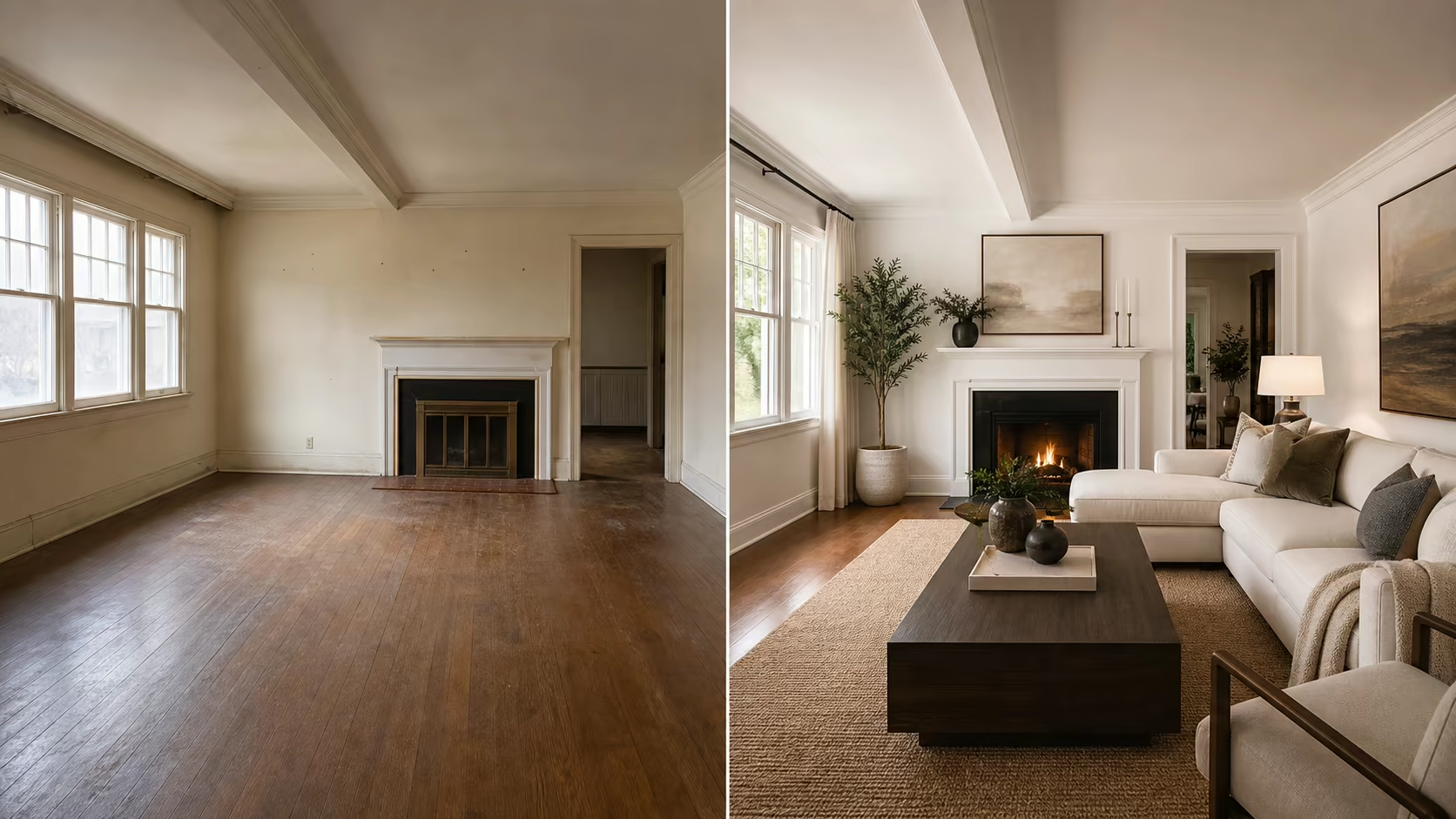
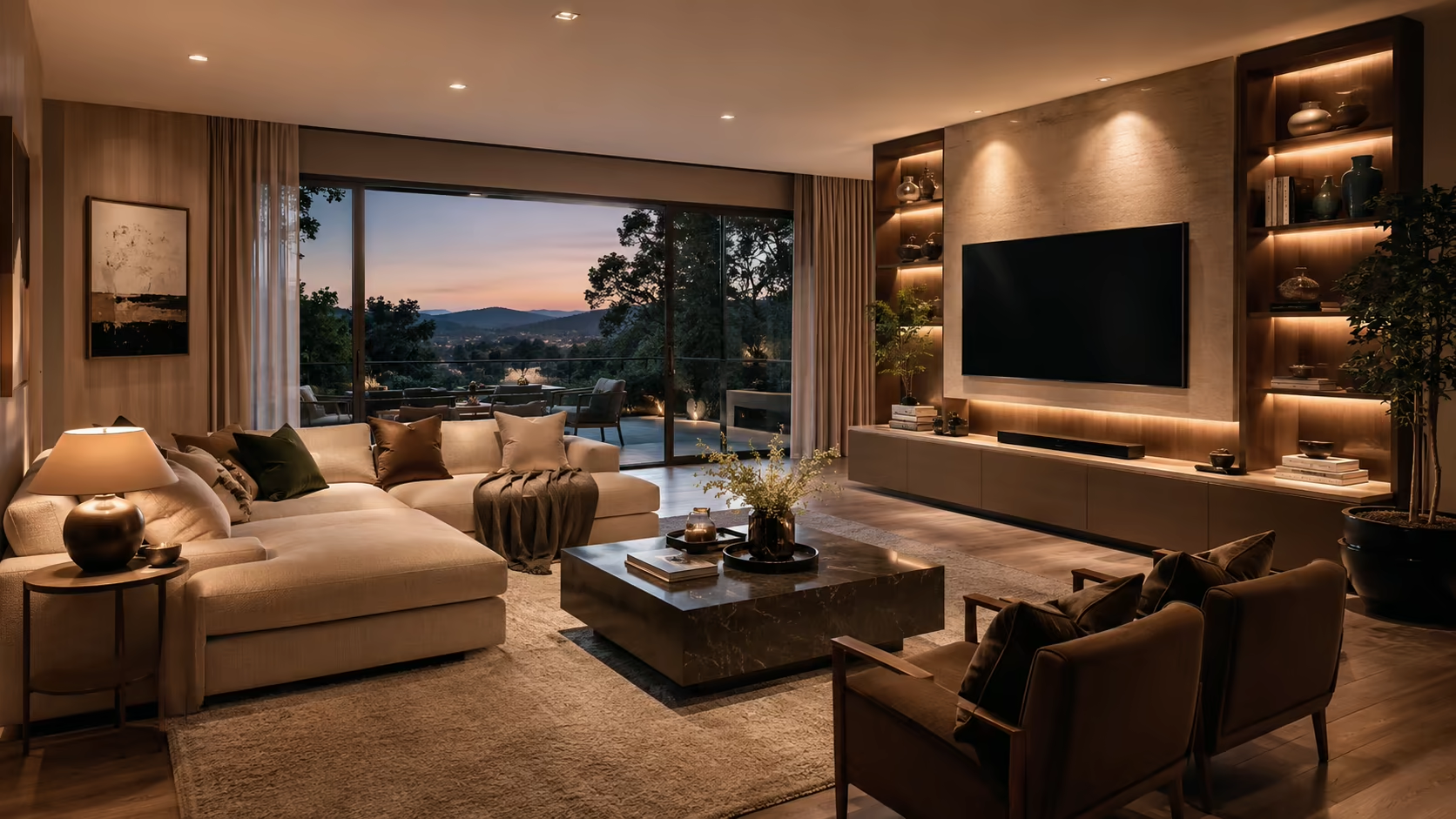
Animate before and after room photos

AI Room Renovation Before After Video Generator

This AI room renovation before after video generator turns two matching photos into a short makeover transition. Supply the original room as the first frame and your finished design as the last frame, then guide how cleaning, painting, fixtures, furniture, lighting, and camera motion should connect them.

Use your exact before and after imagesRenovation, makeover, or reveal promptsCredit estimate before generationNo visible watermark

First Frame

Last Frame

3credits

Sign-in is required to generate. Eligible new accounts currently receive signup credits, and the estimated credit cost is shown before submission.

Built around the real task

Use the AI Room Renovation Before After Video Generator to Animate Your Design

This page connects the before and after images you provide. It does not create a construction plan, verify buildability, or automatically design the finished room.

Control the exact original and finished designs

Your first frame establishes the starting room and your last frame establishes the final interior. This prevents the generator from choosing an unrelated style or replacing your intended design with a generic makeover.

Try this direction

Finish on the supplied after frame with the same sofa, lighting, wall treatment, and layout.

Control the exact original and finished designs capability preview

Choose renovation process or visual reveal

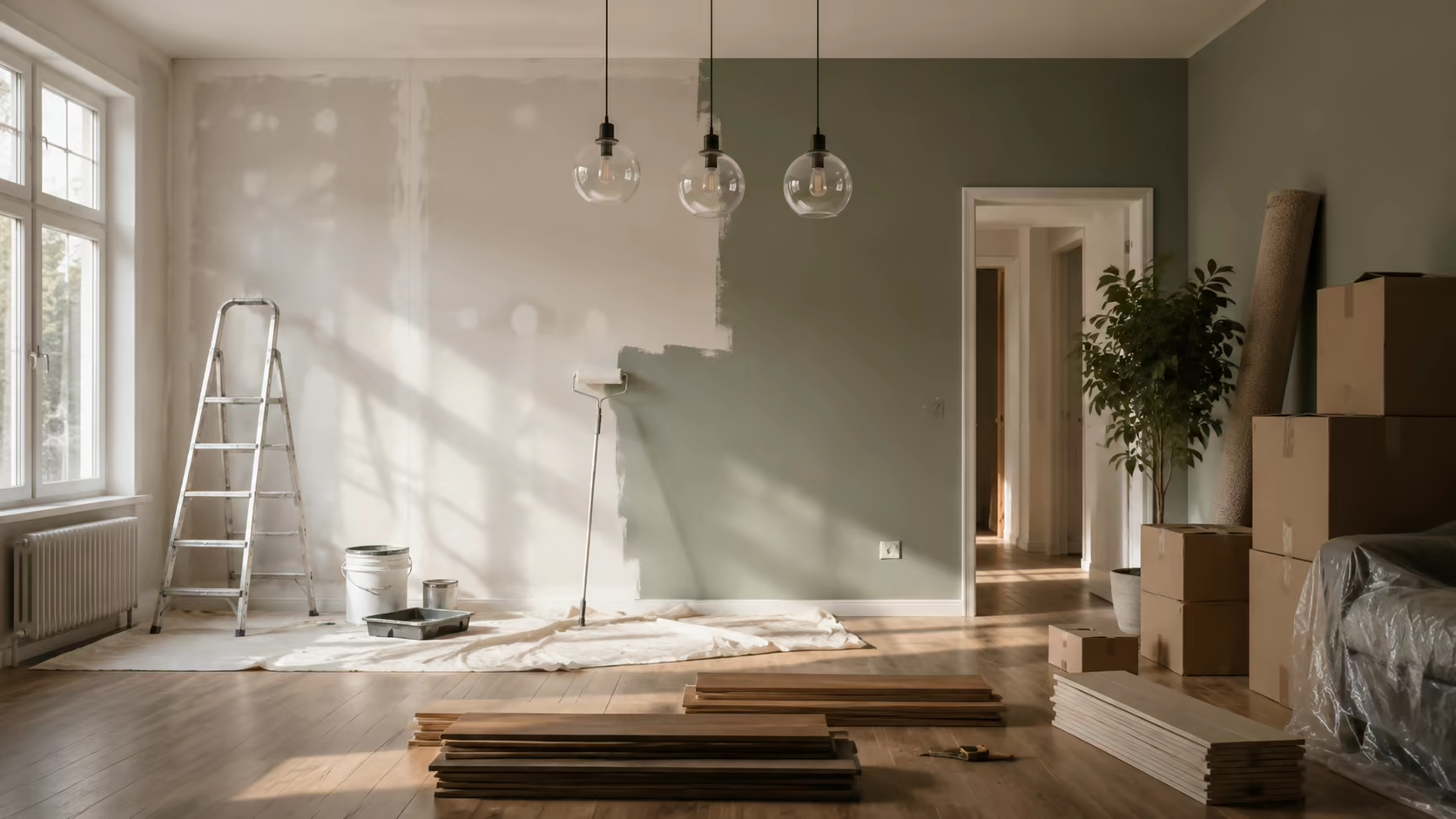
Ask for visible workers and installation steps when you want a timelapse feel, or use a cleaner staged transformation when the before-and-after contrast matters more than construction realism.

Try this direction

Show believable preparation and installation, not magical morphing or floating furniture.

Choose renovation process or visual reveal capability preview

Protect room geometry and camera angle

Compatible frames should share the same walls, openings, ceiling height, lens perspective, and crop. Name those fixed elements in the prompt so the room does not appear to bend or rebuild itself.

Try this direction

Preserve the floor plan, window positions, door openings, ceiling lines, and fixed camera viewpoint.

Protect room geometry and camera angle capability preview

Sequence the visible work

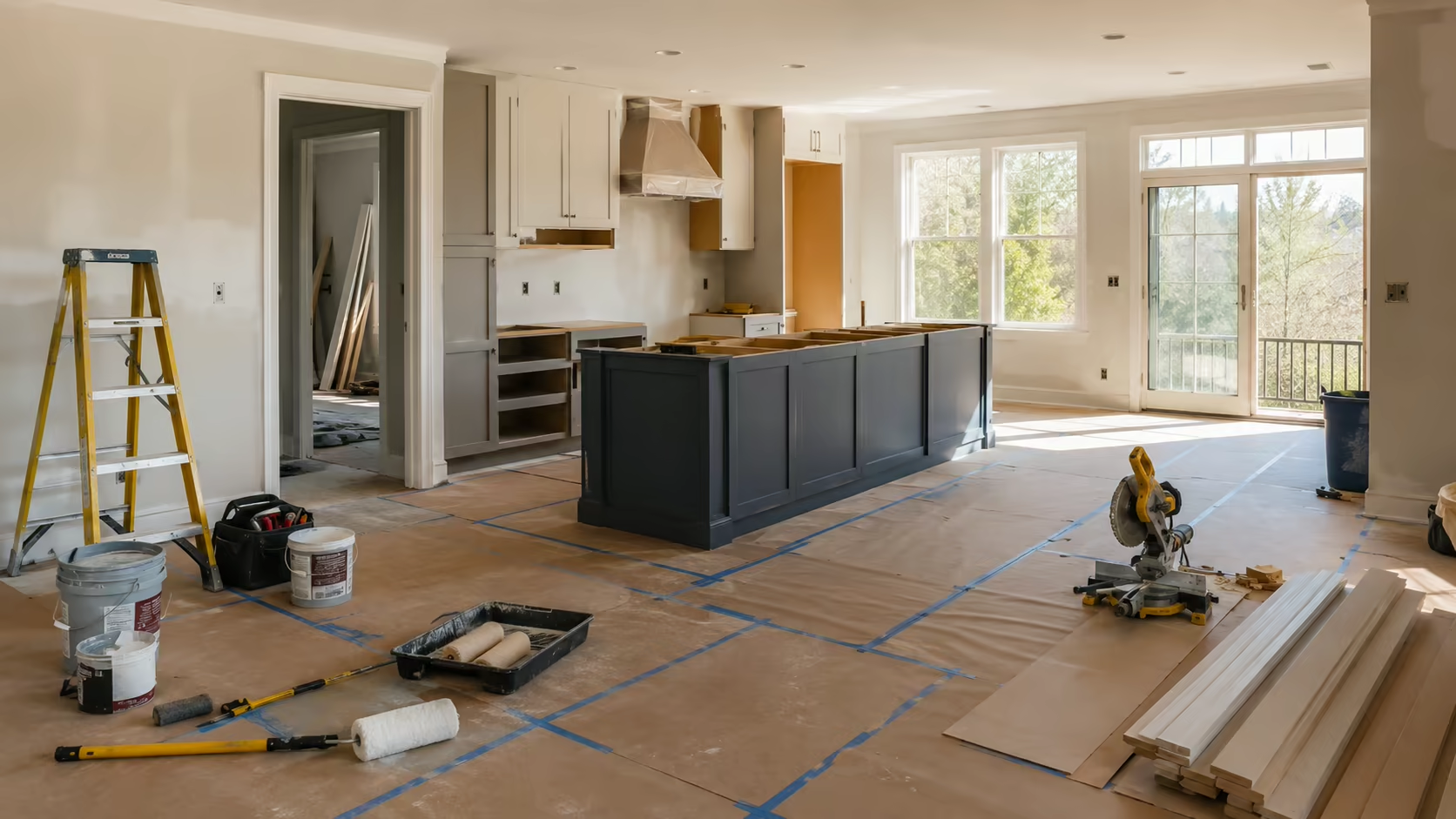
A renovation prompt is easier to interpret when tasks appear in order: clearing, surface preparation, painting, flooring, fixtures, large furniture, then styling details.

Try this direction

Clear debris, repair surfaces, paint, install flooring and lights, place furniture, then add decor.

Sequence the visible work capability preview

Create content for renovation and property marketing

Use the short result as a reel, project reveal, listing enhancement, concept presentation, or opening shot in a longer case-study edit.

Try this direction

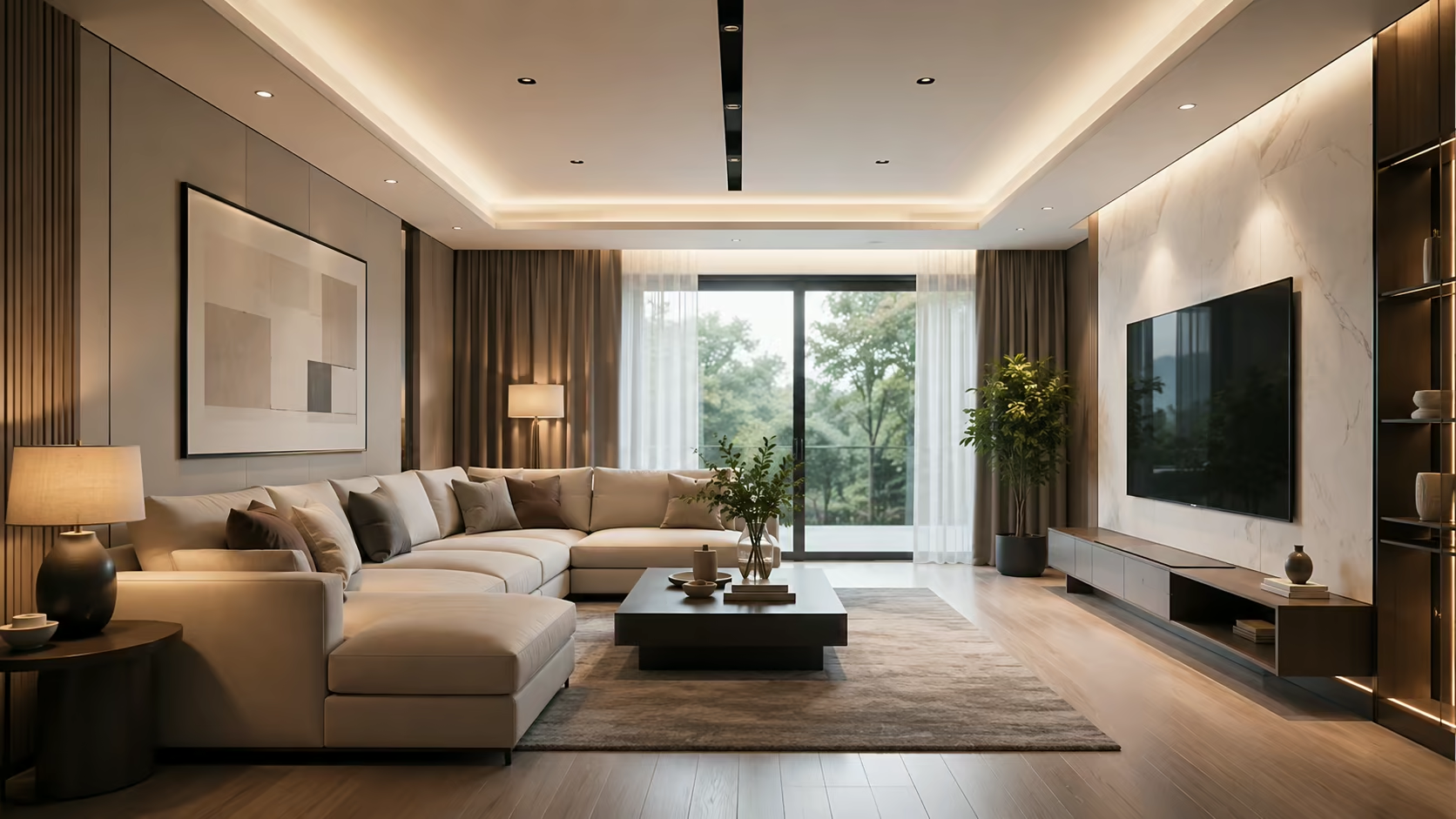
Hold the completed room briefly at the end so viewers can understand the finished design.

Create content for renovation and property marketing capability preview

Try other before-and-after transformations

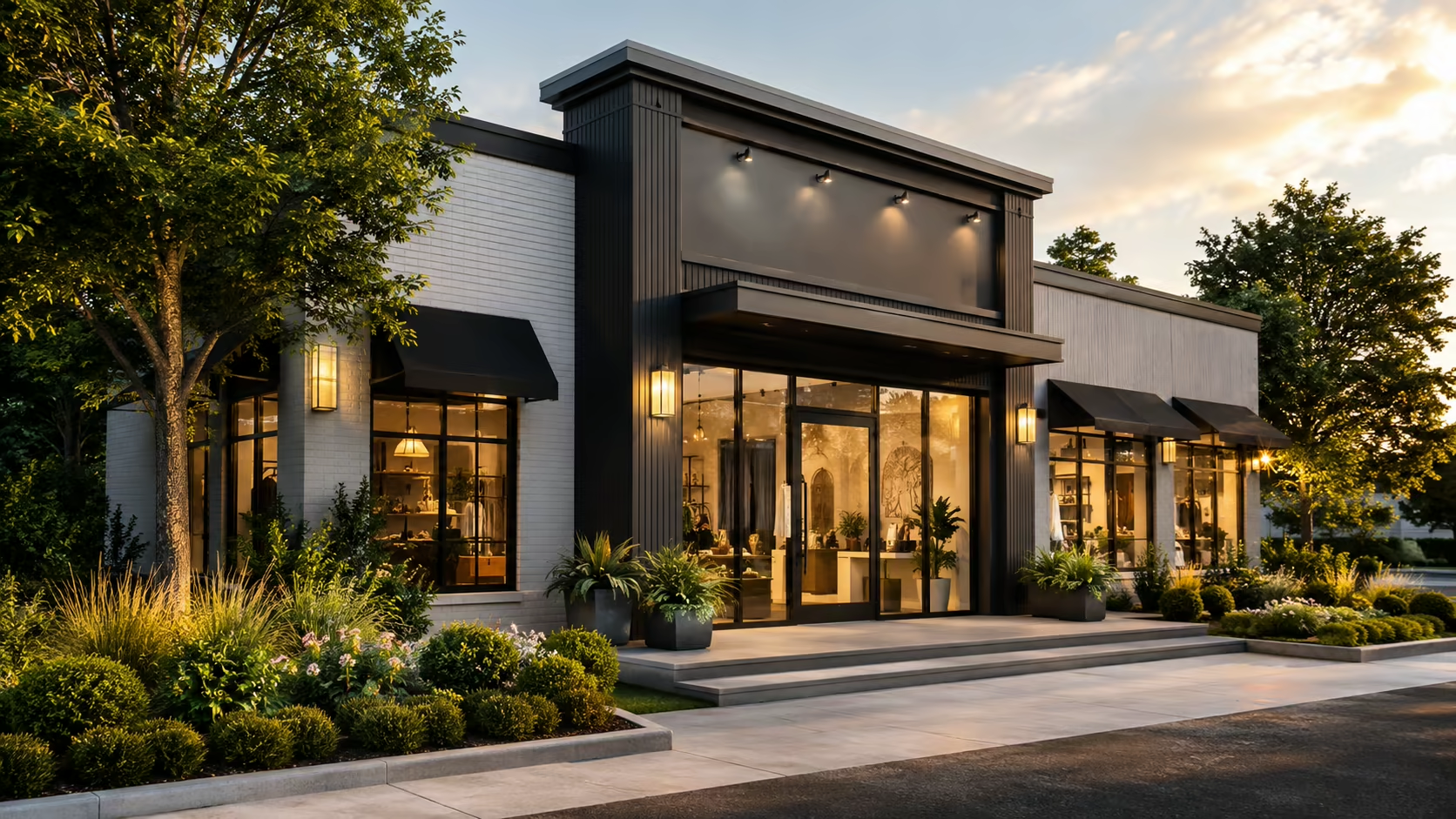
The same first-and-last-frame workflow can connect an empty and staged room, a garden before and after, a storefront refresh, or a cleaned and restored space.

Try this direction

Keep the property structure fixed while landscaping, finishes, fixtures, and staging change in sequence.

Try other before-and-after transformations capability preview
How to create a renovation video

Use the AI Room Renovation Before After Video Generator in Three Steps

Prepare the endpoints carefully. The generator is responsible for the motion between them, not for correcting a mismatched perspective or impossible final layout.

01

Upload the before and after room photos

Use the same viewpoint and crop. Confirm that doors, windows, walls, and other permanent structures line up between the two frames.

02

Describe the renovation sequence

Choose a realistic build process, a clean makeover reveal, or a fast social transformation. Specify the camera and the structures that must remain fixed.

03

Generate and review every important detail

Check room geometry, furniture, fixtures, people, logos, and the match to your final image. Regenerate or edit the clip before using it in a listing or client presentation.

Who this page is for

Room makeover videos for projects, properties, and social posts

The short AI transition works best as one visual asset inside a broader renovation, design, or property story.

Interior designer reveals

Connect an original room photo to an approved visualization or finished-project image for a concise concept reveal.

Renovation company portfolios

Add a short transformation shot between real project photos, while clearly labeling generated motion when needed.

Real estate marketing

Animate a renovation or staging concept without presenting the generated transition as documentary construction footage.

DIY and makeover channels

Create a high-retention opener or recap shot for Reels, Shorts, TikTok, and longer project videos.

Empty-to-staged rooms

Show furniture and decor entering an unchanged room when both the empty and staged images already exist.

Outdoor property changes

Adapt the workflow to patios, gardens, storefronts, and facades when the structure and camera remain compatible.

Why use two supplied frames

Keep creative control over both sides of the makeover

Many room tools invent the redesigned image. This workflow is for users who already have the exact before and after visuals they want to connect.

Your final design stays the target

The supplied last frame defines the intended room instead of asking the video model to redesign it from a style name.

Flexible prompting

Choose construction activity, a restrained reveal, or a faster transformation based on the purpose of the clip.

Practical cost visibility

Review the selected model, ratio, and estimated credit cost before submitting the generation.

No visible platform watermark

Download the completed clip without a visible Voe AI watermark over the renovation.

Important limits

What the AI Room Renovation Before After Video Generator Does

Clear boundaries help users prepare the right assets and avoid treating generated video as architectural or construction evidence.

Required input

Before + after images

This page does not generate the finished interior design from one room photo.

Best match

Same viewpoint

Walls, doors, windows, perspective, and crop should align closely.

Output

Short generated clip

Use it inside a longer edit; it is not a complete renovation case-study video.

Not professional advice

Visual concept only

The result does not verify costs, materials, dimensions, permits, or buildability.

Renovation prompt library

Copy a room transformation prompt, then match your frames

Name the room geometry that must stay fixed and choose one transformation style. Do not combine a realistic construction timelapse with magical effects in the same first attempt.

Realistic living-room renovation

Keep the living-room geometry and fixed camera unchanged. Show a compressed realistic renovation: remove old furnishings, prepare and repaint the walls, install the new flooring and lighting, place the sofa and major furniture, then finish exactly on the supplied after frame.

Kitchen makeover

Preserve the walls, windows, doors, and camera perspective. Remove the old cabinets in sequence, install the new cabinetry and counters, add fixtures and lighting, clean the space, and end on the provided finished kitchen without changing its layout.

Clean visual reveal

Create a smooth before-and-after room makeover. Keep the structure and viewpoint fixed while finishes and furnishings transition in coordinated layers. No workers, fantasy particles, floating objects, or camera movement.

Empty room to staged room

Keep the empty room unchanged as furniture and decor enter in a believable order: rug, large seating, tables, lamps, artwork, and small styling details. Hold the supplied staged room at the end.

Fast vertical short

Create a high-retention 9:16 renovation transition. Keep the room centered, move quickly through clearing, painting, installation, and furnishing, then pause briefly on the exact final design. Stable camera and realistic object scale.

Exterior property refresh

Preserve the building structure and camera position. Clean the facade, repair surfaces, update paint and fixtures, improve the path and landscaping, and finish on the supplied renovated exterior with natural daylight.

Frequently asked questions

AI Room Renovation Before After Video Generator FAQ

What is an AI room renovation before-and-after video generator?
It creates a short generated transition between an original room image and a finished-room image. This page uses your two frames as visual endpoints and a prompt to describe the renovation, makeover, or reveal between them.
Can this AI redesign my room from one photo?
Not on this page. You need to supply both the before and after images. The generator animates the transition; it does not create a verified interior design, floor plan, shopping list, or construction proposal.
What photos make the best renovation video?
Use images taken from the same viewpoint with matching crop, lens perspective, room boundaries, and permanent structures. Large differences in wall positions, windows, doors, or camera height can produce visible morphing.
Can I make a realistic construction timelapse?
You can prompt a compressed sequence with cleaning, painting, tools, workers, fixtures, and furniture. The output remains generative rather than a record of actual construction, and realistic intermediate steps are not guaranteed.
Can I make a simple before-and-after reveal instead?
Yes. Ask for a locked camera and coordinated changes to surfaces, lighting, and furniture without workers or detailed building activity. This can be cleaner when the final contrast matters more than the process.
Can I use the result for real estate marketing?
You can use the clip as creative marketing material if you have rights to the source images and follow applicable disclosure and advertising rules. Do not imply that an unbuilt renovation already exists or that the video proves construction quality.
Why does furniture or room geometry change?
The model generates intermediate frames and may reinterpret incompatible objects. Match the source viewpoint, simplify the prompt, name fixed structures, and review the result frame by frame before publishing.
Is the room renovation video generator free?
Eligible accounts may have starting or daily credits. The current credit estimate is shown before generation; free use is not unlimited and depends on the selected model and settings.
Animate your before and after

Connect two room photos with a focused renovation prompt

Open the AI Room Renovation Before After Video Generator, prepare matching frames, choose the transformation, and review the model and credit estimate.