Create visuals and sound in one generation

AI Video Generator with Audio

Generate a short AI video with dialogue, sound effects, ambience, or music on supported models. Describe both what viewers should see and hear, review the audio setting and credit cost, then start online without installing editing software.

Free credits after sign-inNo visible watermarkAudio enabled by defaultCredit cost shown before generation
3credits

Sign-in is required to generate. Eligible new accounts currently receive signup credits, and the estimated credit cost is shown before submission.

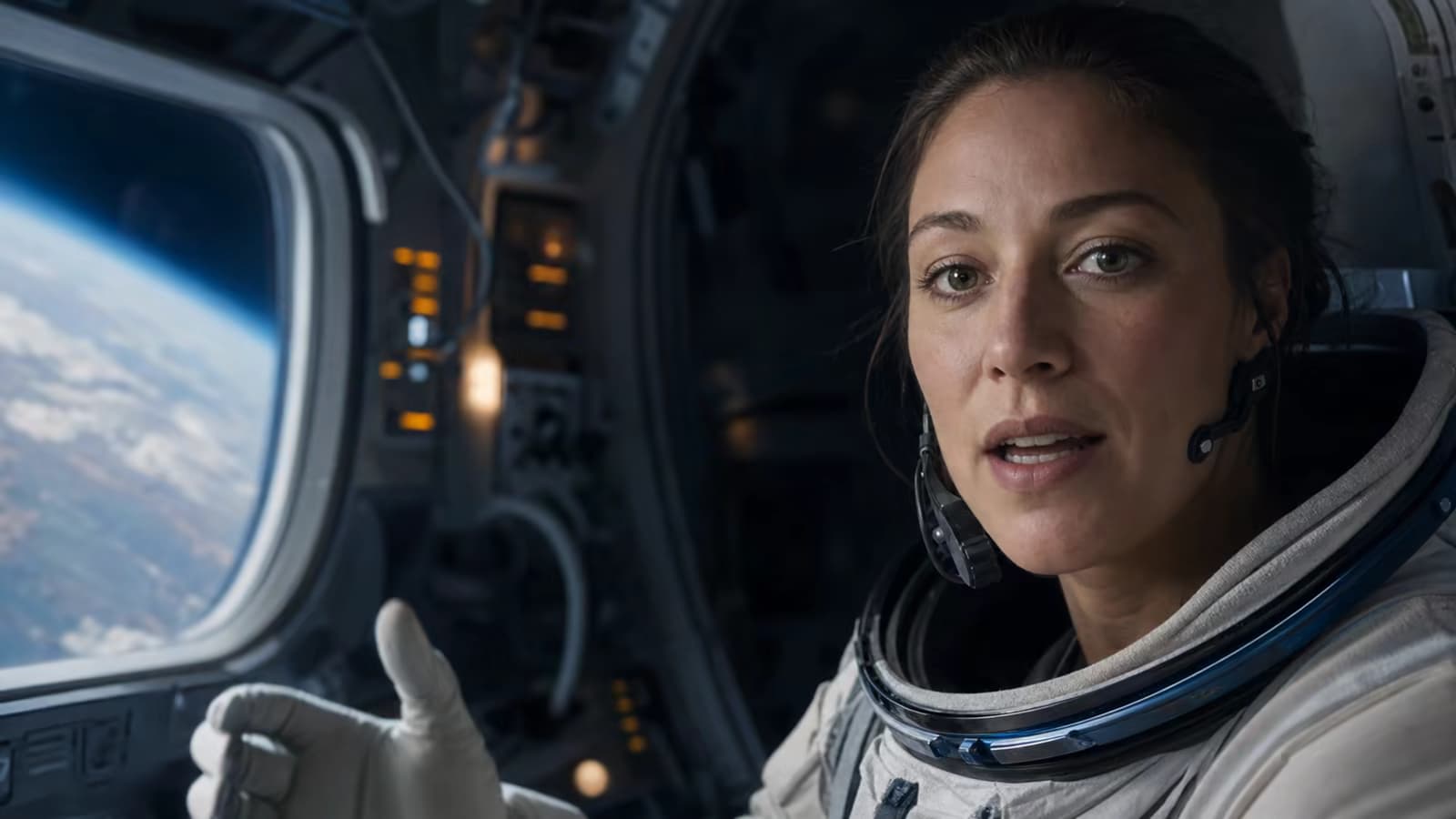
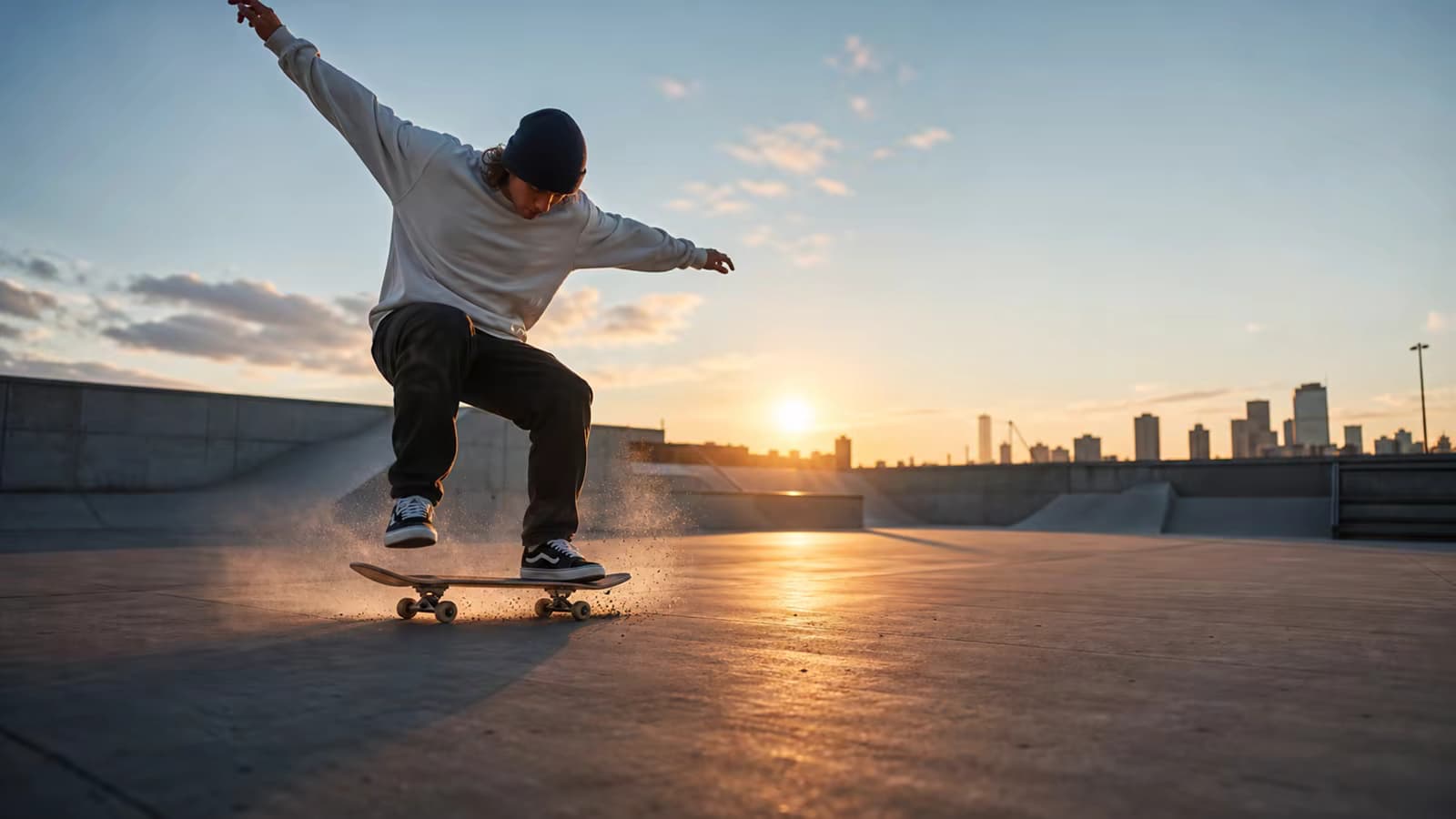
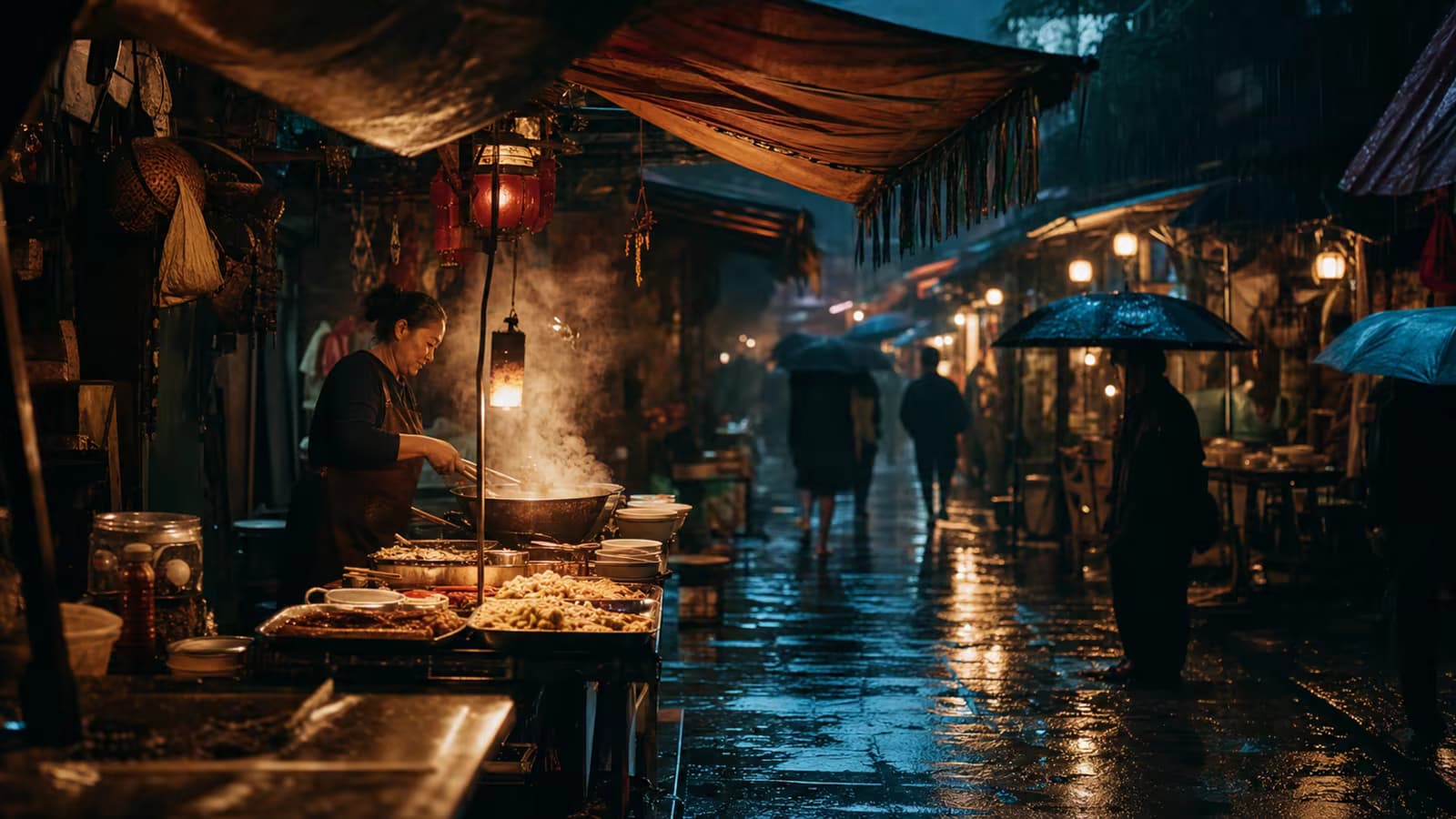
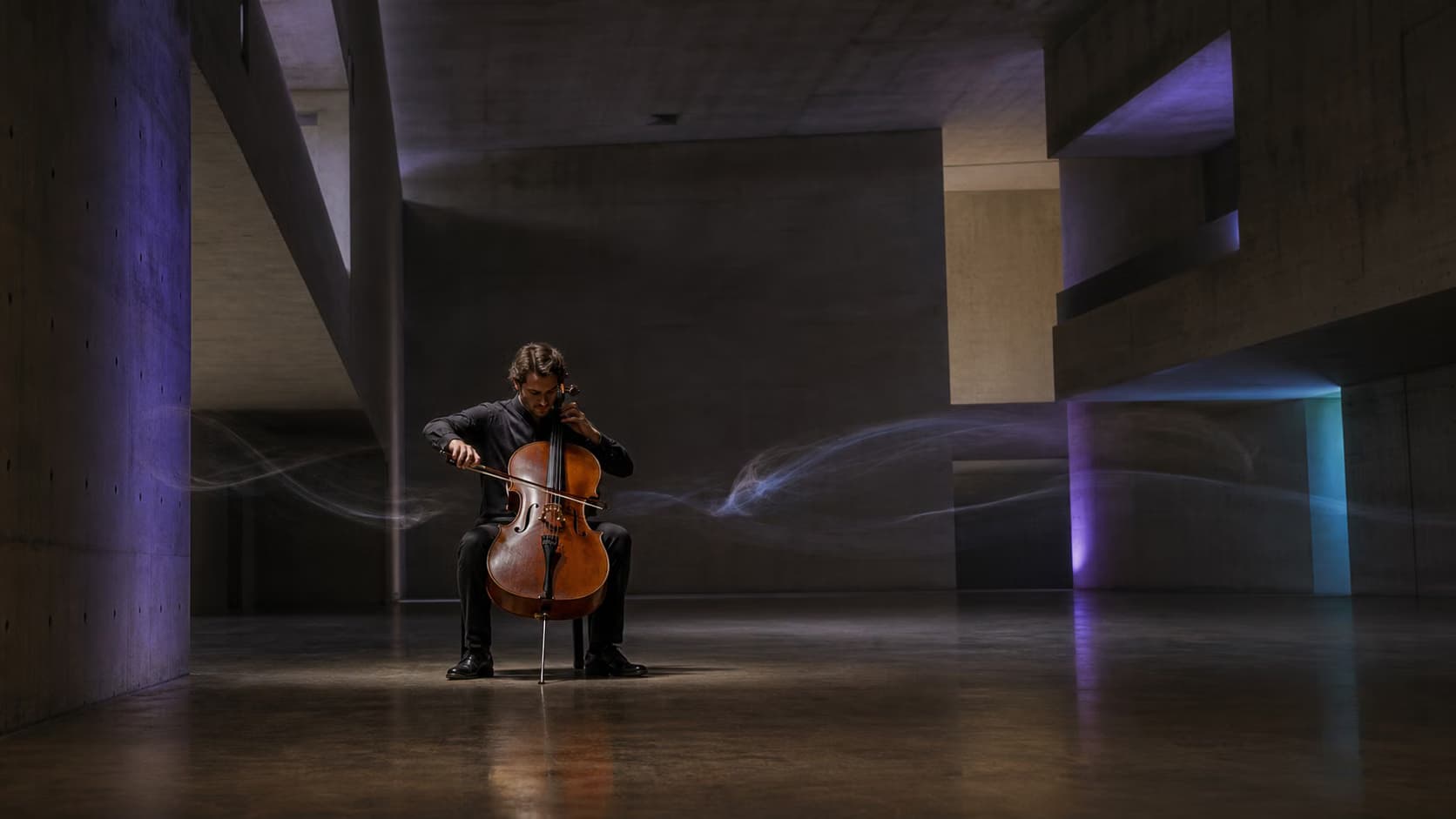
Video gallery

Made with AI

What an AI video generator with audio can do

Design the shot and its sound together

Sound works best when it is part of the scene plan. The prompt should connect visible actions, speakers, location, and timing to the audio you expect the model to create.

Generate short dialogue in the scene

Name the speaker, write the exact line in quotation marks, and describe delivery and environment. This gives the model clearer guidance than asking for generic talking.

Try this direction

Identify one speaker, one short line, the tone of voice, and the surrounding ambience.

Generate short dialogue in the scene capability preview

Match sound effects to visible action

Request footsteps, impacts, machinery, doors, water, traffic, fabric, or other concrete sounds together with the action that produces them.

Try this direction

Describe the action first, then name the corresponding sound and its intensity.

Match sound effects to visible action capability preview

Build a believable environment

Layer room tone, weather, nature, crowds, distant vehicles, or indoor detail so the shot feels located in a real acoustic space instead of remaining silent.

Try this direction

Use two or three ambient elements and state which one is closest to the camera.

Build a believable environment capability preview

Add a restrained musical direction

Describe mood, instrumentation, tempo, and whether music should be subtle or dominant. Keep the request compatible with a short clip rather than asking for a complete song.

Try this direction

Ask for instrumental music and specify “no vocals” when speech must remain clear.

Add a restrained musical direction capability preview

Control what should not be heard

Use exclusions such as no narration, no music, no crowd, or no dialogue to prevent unwanted layers from competing with the important sound.

Try this direction

End the audio direction with a short list of excluded sound types.

Control what should not be heard capability preview

Compare audio-capable model options

Supported audio controls, duration, resolution, and credit estimates vary by model. The workspace exposes current parameters before you submit.

Try this direction

If a result is close, keep the model and adjust only the dialogue or sound direction first.

Compare audio-capable model options capability preview
How to create video with sound

Generate a sound-on AI video in three steps

The page opens in text-to-video mode with a supported model and audio enabled, so the controls match the intent of the page.

01

Describe the visual scene

Define the subject, location, action, camera, and visual mood. Keep the scene focused enough to fit the selected clip duration.

02

Write what should be heard

Add exact dialogue, matching sound effects, ambience, or musical direction. Confirm that the audio option remains enabled.

03

Review cost, generate, and listen

Check the selected model, duration, resolution, audio setting, and credit estimate before submission. Play the result with sound on and refine one audio issue at a time.

Practical uses

When native audio adds value

Use this workflow when sound belongs to the generated moment itself, not when you already have a finished video and only need to attach an existing audio file.

Dialogue-led micro scenes

Create a short line of character dialogue within a cinematic, educational, comedic, or promotional shot.

Action and product sounds

Support visible movement with impacts, mechanical detail, pouring, cooking, footsteps, or tactile product sound.

Atmospheric social videos

Build short travel, nature, lifestyle, horror, fantasy, or urban clips with location-specific ambient sound.

Concepts and storyboards with tone

Communicate how a proposed scene should feel by generating temporary dialogue, ambience, effects, and musical direction together.

Why use Voe AI

Audio controls and costs are visible before submission

The workflow is designed around generation with sound, while staying honest about model support and the limits of AI-produced dialogue and synchronization.

Audio mode starts ready

A supported text-to-video model is selected and the audio option is enabled by default for this landing-page workflow.

Free credits for eligible new accounts

Sign in to see available signup or daily credits and the exact estimate for the sound-on configuration before submitting.

No visible watermark

Generated results can be downloaded without a visible Voe AI watermark, leaving a clean frame for review or further editing.

Current settings, not vague promises

The composer shows whether audio is enabled and how model, duration, resolution, and sound can affect the credit estimate.

Audio support, cost, and real limits

Know what this workflow does before you generate

This page is for generating new video and sound together. It is not an audio-to-video visualizer, a voice-cloning tool, or an editor for attaching an existing track to a finished clip.

Default workflow

Seedance 2.0 Mini with audio on

Starts in text-to-video mode with the generate-audio parameter enabled.

Generation time

Varies by model and queue

You can submit online immediately, but sound-on completion time is not guaranteed in seconds.

Credit cost

Shown before submission

Audio, duration, resolution, and model selection may change the estimate.

Important limitation

Audio can be imperfect

Dialogue, pronunciation, lip movement, timing, music, and effects may require a revised prompt or another generation.

Sound-on prompt examples

Describe what viewers see and hear

Short, structured audio direction makes it easier to identify what worked. Use quotation marks for exact dialogue and connect each effect to a visible action.

Dialogue

Medium close-up of a weathered lighthouse keeper at dawn, looking toward the sea. He says quietly, “The storm passed before sunrise.” Natural lip movement, soft coastal wind, distant gulls, low room tone from the lantern room, no music.

Action effects

A cyclist speeds through a wet neon alley as the camera tracks beside the bike. Tires spray water, the chain clicks under acceleration, one sharp bell rings near the corner, rain echoes between buildings, no dialogue, no music.

Product sound

Macro studio shot of a mechanical keyboard. One hand presses three keys slowly. Crisp individual key clicks, subtle spring return, quiet treated-room ambience, no voice, no background music. Slow camera slide from left to right.

Atmosphere and music

A small night train crosses a snowy valley under moonlight. Low train rumble, rhythmic rail joints, wind over snow, distant horn once, and very subtle warm strings without vocals. Slow wide aerial tracking shot.

Video-with-audio questions

Frequently asked questions

What is an AI video generator with audio?
It generates new visual frames and an audio track as part of the same video request on a supported model. The prompt can ask for dialogue, effects, environmental ambience, music, or a combination of those elements.
Is this the same as an audio-to-video generator?
No. This workflow begins with a text scene description and generates video with sound. It does not take a song, podcast, or uploaded audio file and automatically create visuals from that audio.
Can I upload audio and add it to an existing video?
Not in this landing-page workflow. It is for generating a new sound-on video, not for attaching an existing audio track to a completed video or editing separate timeline tracks.
Can I generate dialogue and lip movement?
You can request short dialogue on supported models by naming the speaker and placing the exact line in quotation marks. Pronunciation, timing, identity, and lip synchronization can still be imperfect and may require another generation.
Can I generate sound effects without music?
Yes. Describe each visible action and its intended effect, then explicitly state “no music” and “no dialogue.” Exclusions reduce ambiguity but do not guarantee that every generation will follow them perfectly.
Can I use the AI video generator with audio for free?
Eligible new accounts may receive signup credits, and daily credits may also be available after sign-in. Audio-capable generations consume credits, and the current estimate is shown before submission. This is not an unlimited free service.
Will the sound-on video have a watermark?
Voe AI does not add a visible watermark to the downloaded result. This refers to visible branding in the video frame and does not make a claim about model-level provenance metadata.
Why is the generated audio different from my prompt?
Crowded scenes, long dialogue, multiple speakers, competing sound layers, or vague timing can make audio less predictable. Shorten the line, reduce the number of sound elements, identify the speaker clearly, and revise one issue at a time.
Can I clone a voice or choose a persistent voice ID?
This workflow does not currently offer voice cloning, a reusable voice identity, or a dedicated voice-ID control. Do not rely on it for reproducing a real person or maintaining an identical voice across separate clips.
Create a sound-on video online

Generate the shot and its sound together

Describe the visual action, dialogue, effects, ambience, or music you want, review the audio setting and credit estimate, and submit online.