Animate one image with controlled motion

Image to Video AI Generator

Turn a still photo, product image, portrait, or illustration into a short video online. Upload one image, describe the subject and camera movement you want, review the credit cost, and generate an animated result without a visible watermark.

Free credits after sign-inNo visible watermarkStart online — no installationCredit cost shown before generation
3credits

Sign-in is required to generate. Eligible new accounts currently receive signup credits, and the estimated credit cost is shown before submission.

Video gallery

Made with AI

What this image to video AI can do

Give a still image purposeful motion

The useful result is not simply a moving picture. It is a shot in which the subject, camera, background, and pace support the story you want to tell.

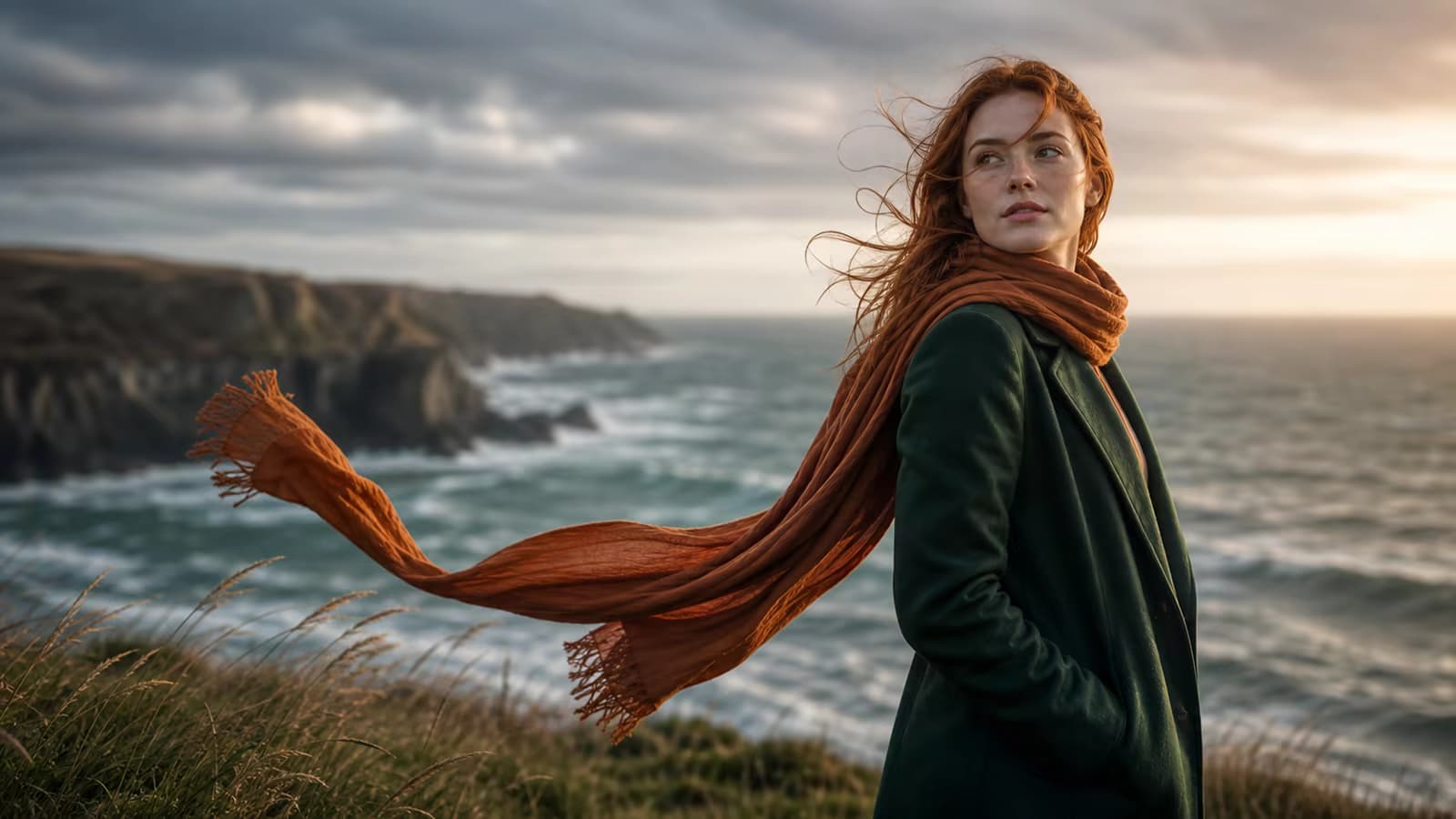
Animate the subject, not just the canvas

Describe what should move—an expression, a turn, flowing fabric, steam, water, or a product mechanism—so the result has a clear action instead of a basic zoom effect.

Try this direction

Separate subject motion from camera motion in two short sentences.

Animate the subject, not just the canvas capability preview

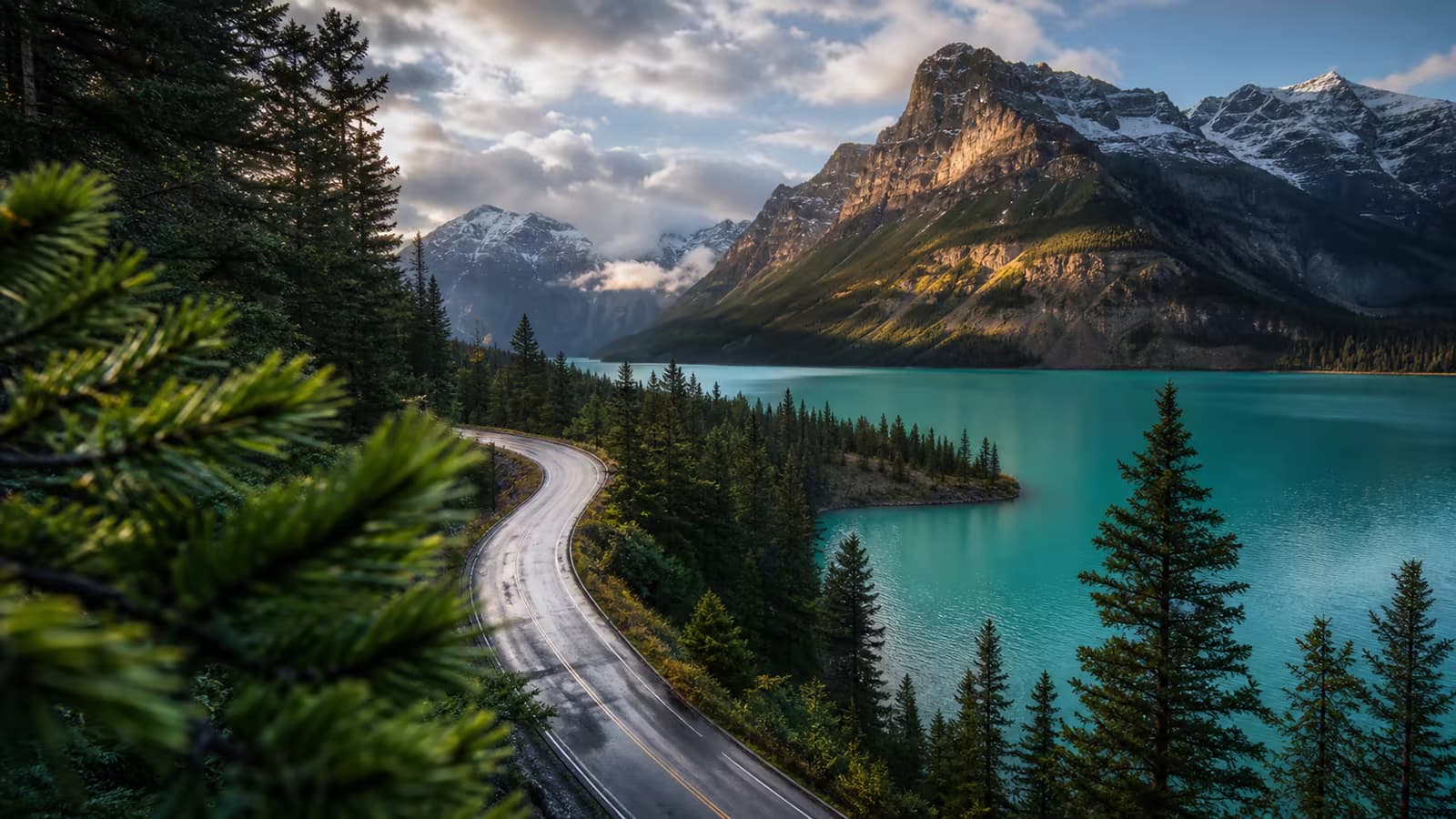
Direct the virtual camera

Request a push-in, pull-back, pan, orbit, tilt, tracking shot, handheld feel, or locked camera. Specific camera direction helps avoid random reframing and unwanted crops.

Try this direction

Use one camera movement and describe its speed: slow, steady, or energetic.

Direct the virtual camera capability preview

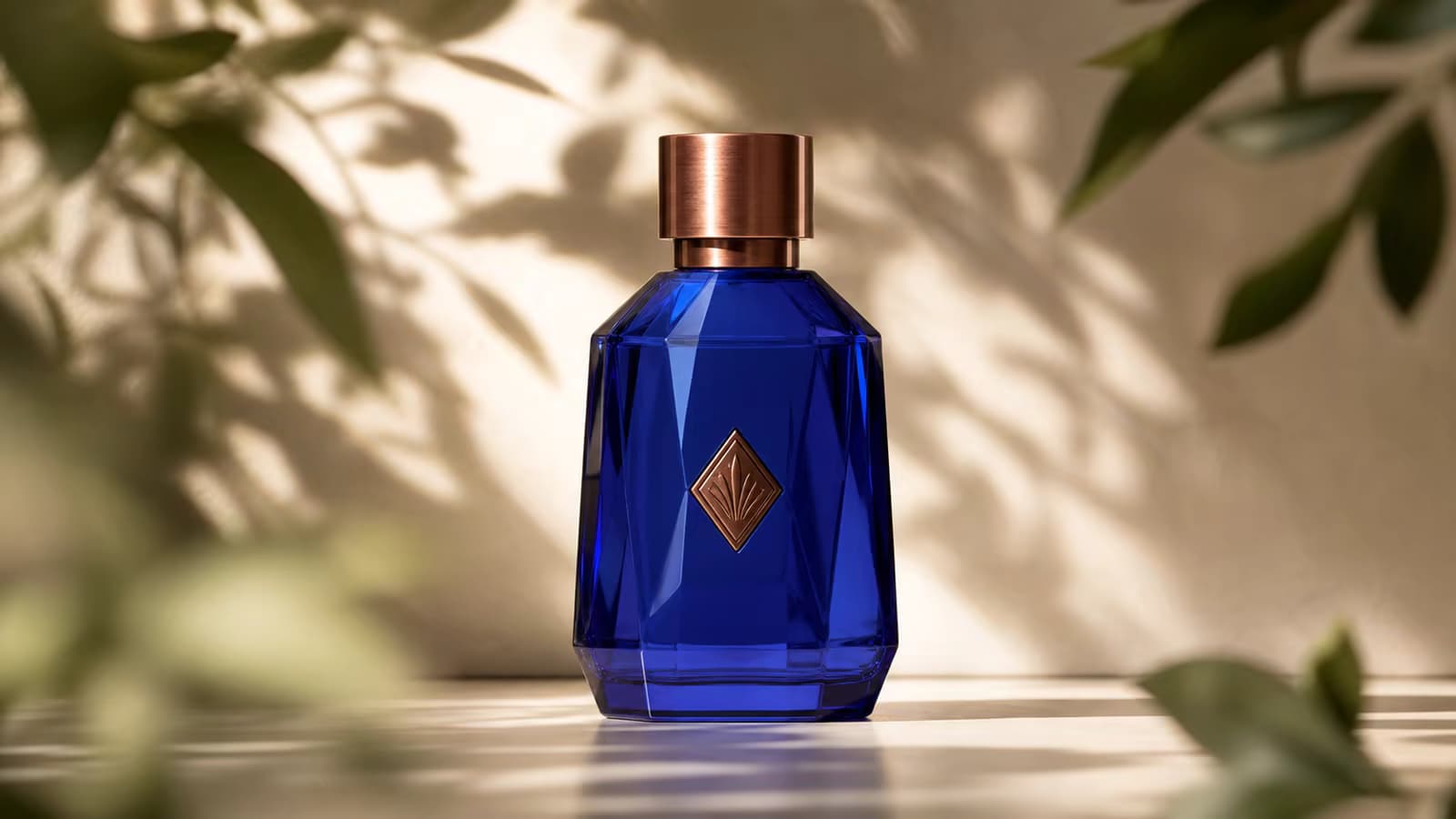
Preserve the source image as the anchor

The uploaded image establishes the subject, composition, color, and visual identity. Prompts that reinforce important facial or product details can reduce drift during motion.

Try this direction

Name the details that must stay unchanged, such as a logo, hairstyle, or clothing.

Preserve the source image as the anchor capability preview

Create motion for different formats

Build short horizontal, vertical, or square-ready shots for product pages, social feeds, ads, presentations, and storyboards by choosing the model and aspect ratio that fit the destination.

Try this direction

Frame the source image close to the final aspect ratio before uploading.

Create motion for different formats capability preview

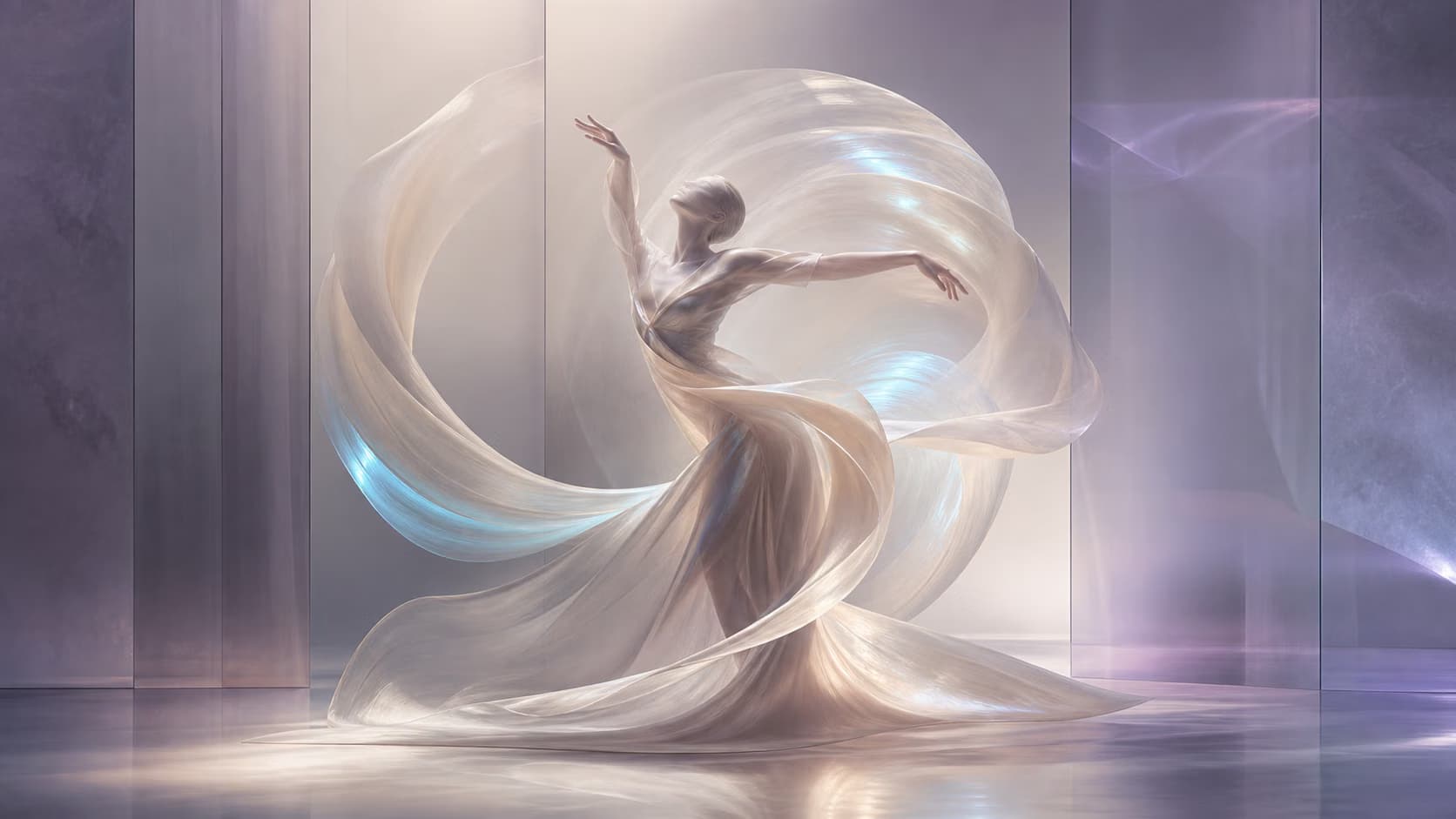
Control atmosphere and pacing

Add environmental movement, lighting changes, depth, weather, or cinematic pace while keeping the main action readable. This works especially well for artwork and location images.

Try this direction

Describe one foreground movement, one background movement, and the intended mood.

Control atmosphere and pacing capability preview

Choose another model when the shot demands it

The shared workspace offers multiple image-to-video models. Compare supported durations, resolutions, ratios, motion behavior, and credit estimates before submitting a generation.

Try this direction

Start with the default model, then change one setting at a time when iterating.

Choose another model when the shot demands it capability preview
How to animate a photo

Create an AI video from one image in three steps

The generator opens in image-to-video mode, so you can move from a source image to a submitted generation without searching through unrelated tools.

01

Upload one clear source image

Choose a photo or artwork with a readable subject and enough room for the intended movement. Images close to the final composition usually require less correction.

02

Describe subject and camera motion

State what the subject does, what the camera does, and what should remain unchanged. Keep the first attempt focused on one coherent shot.

03

Review settings, generate, and download

Check model, duration, resolution, aspect ratio, and estimated credits before generating. Review the result, refine the prompt if needed, and download without a visible watermark.

Practical uses

When image-to-video is the right workflow

Use this page when one image should define the opening appearance and you want AI to create a short continuation from it.

Portrait and character clips

Add restrained expressions, natural gaze changes, hair movement, and camera motion to portraits or character art.

Product demonstrations

Create reveal shots, rotations, close-ups, lighting passes, or contextual motion from existing product photography.

Social posts and short ads

Convert campaign stills, thumbnails, posters, and branded images into short motion assets for vertical or horizontal placements.

Artwork and concept visualization

Add layered atmosphere, environmental movement, and parallax to illustrations, game art, architecture, or mood boards.

Why use Voe AI

A direct path from image to usable video

The page combines a focused input flow with practical generation information, so you know what you are submitting and what it is expected to cost.

The correct mode is ready

Image upload and motion prompting are available immediately instead of being hidden behind a general model dashboard.

Free credits for eligible new accounts

Sign in to see any available signup or daily credits and the exact credit estimate for the selected generation before submitting.

No visible watermark

Generated results can be downloaded without a visible Voe AI watermark, so the frame remains clean for your edit or presentation.

Multiple models in one workspace

If the first model does not fit the shot, compare other available image-to-video options without rebuilding the project elsewhere.

Settings, cost, and real limits

Know the practical details before you generate

Available controls and credit cost vary by model. The tool shows the current options and estimate rather than relying on a fixed promise in the page copy.

Default workflow

Wan 2.7 Image to Video

Opens with one-image input and a short, lower-cost default configuration.

Generation time

Varies by model and queue

You can start online immediately, but completion time depends on the selected model and service load.

Credit cost

Shown before submission

Duration, resolution, audio, and model selection can change the estimate.

Important limitation

Motion can introduce drift

Large movement, small faces, text, logos, hands, and complex backgrounds may need prompt or source-image adjustments.

Image-to-video prompt examples

Start with a clear subject, camera, and constraint

Copy a pattern, replace the scene details, and keep your first generation focused. More instructions are not always better.

Portrait

The woman takes a slow breath, blinks naturally, and turns her gaze slightly toward the window. A gentle breeze moves a few strands of hair. Slow cinematic push-in. Keep her face, hairstyle, clothing, and background composition consistent.

Product

The camera performs a smooth 30-degree orbit around the watch as a narrow studio highlight moves across the metal case. The watch stays fixed on the pedestal. Preserve the exact dial, logo, proportions, and material finish.

Illustration

Animate the illustrated scene with drifting clouds, lightly swaying grass, and warm light flickering in the windows. Add subtle foreground-to-background parallax. Keep the character design, line work, and color palette unchanged.

Food

Steam rises naturally from the bowl while the sauce surface moves gently. The camera makes a slow close-up push. Preserve the ingredients, plate shape, table styling, and appetizing natural texture.

Image-to-video questions

Frequently asked questions

What is an image to video AI generator?
It uses an uploaded image as the visual starting point and generates new frames that create motion over time. Your prompt can direct the subject, camera, atmosphere, and pace of the resulting shot.
Can I use the image to video AI generator for free?
Eligible new accounts may receive free signup credits, and daily credits may also be available after sign-in. The tool shows the current balance and estimated credit cost before you submit. Free credits are limited and are not an unlimited free plan.
Will the generated video have a watermark?
Voe AI does not add a visible watermark to the generated video download. This statement refers to visible branding on the frame and does not make a claim about model-level provenance metadata.
How do I stop a face or product from changing?
Begin with a clear, sufficiently large subject; request restrained movement; and explicitly name the details that should remain unchanged. Complex actions can still introduce drift, so shorter motion and a stable camera are useful first tests.
Why did my image only zoom in?
A prompt that only describes appearance can leave the model without an action. Describe both subject motion and camera behavior—for example, the subject turns while the camera stays locked—instead of requesting a vague cinematic animation.
What image should I upload?
Use a clear, high-quality image with a readable subject, coherent anatomy or product geometry, and enough room for motion. Starting close to the intended output ratio can reduce unwanted cropping.
What is the difference between image-to-video and first-and-last-frame video?
Image-to-video begins from one source image and lets the model develop what happens next. First-and-last-frame generation supplies both the starting and intended ending image, giving the transition a second visual target.
What is the difference between image-to-video and reference-to-video?
An image-to-video source normally anchors the beginning and composition of a shot. Reference-to-video uses one or more assets to guide a character, object, product, scene, or style without requiring the new shot to begin with a reference image.
Animate your image online

Turn a still image into your next video shot

Upload one image, describe the motion you want, review the credit estimate, and start your image-to-video generation online.